
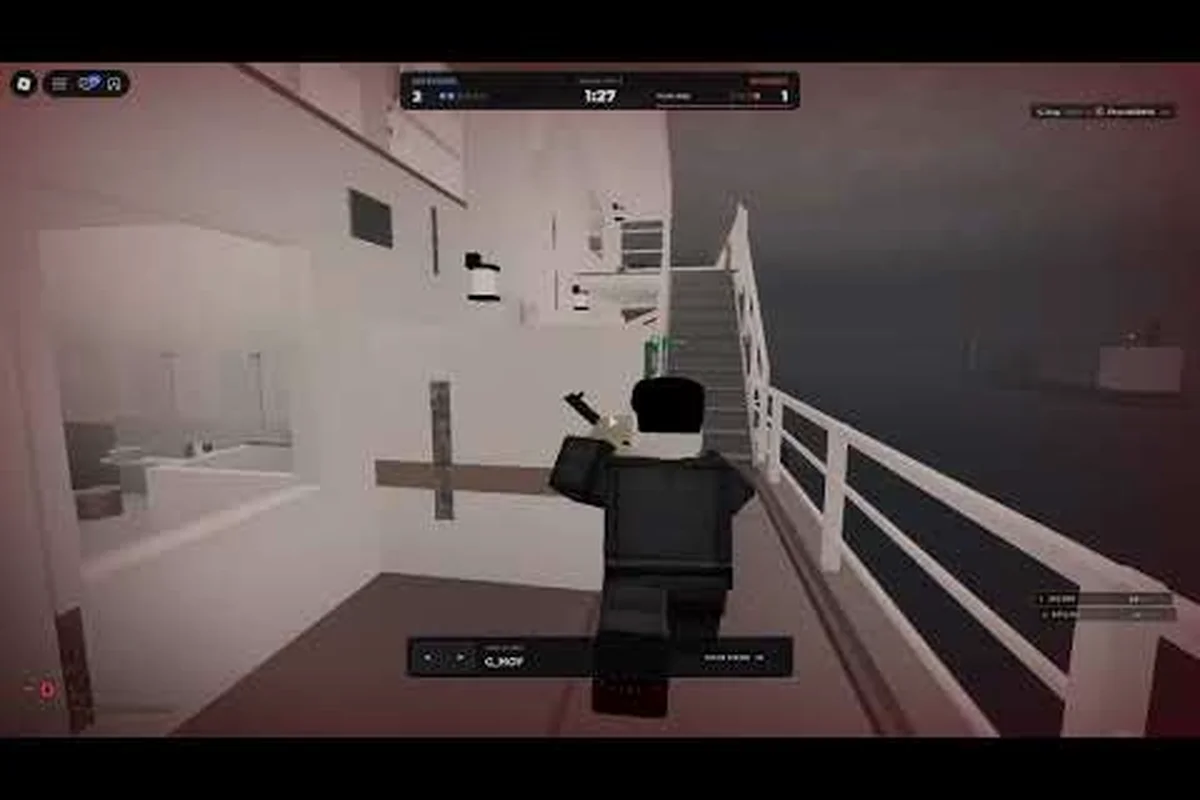
REALISTIC HOME DEFENSE mobile performance decides whether you hold the hallway or whiff every shot while the frame rate stutters. This guide breaks down the settings, device choices, and lag fixes that keep your aim responsive when a breach hits.
Roblox shooters live and die on input latency, and this one punishes slow reactions harder than most. A single dropped frame during a doorway push can cost you the round, so tuning your setup matters as much as your crosshair placement.
Why Frame Rate Decides Every Firefight
In REALISTIC HOME DEFENSE, the entire loop is built around holding angles and reacting to sudden breaches. That means your device has to render a tight interior space, multiple AI or player intruders, and weapon effects all at once. When the frame rate dips below roughly 30 FPS, mouse or touch input starts to feel disconnected from what you see on screen.
The practical result is that frame pacing matters more than raw peak FPS. A stable 40 FPS feels far better than a jumpy 60 that spikes and crashes every time a door gets kicked in. Community reports consistently point to interior lighting and shadow rendering as the biggest culprits behind sudden drops.
Here is how the major platforms typically behave on default settings, based on player experience and community testing: mid-range Android phones usually sit in the 25–35 FPS range because dynamic shadows and particle-heavy muzzle flashes overwhelm the GPU, while modern iPhones hold 45–60 FPS until thermal throttling kicks in after 15–20 minutes of sustained play. Low-end PCs land around 30–45 FPS with CPU-bound physics dragging down door-breach and ragdoll calculations, Xbox consoles stay near 55–60 FPS with only rare network spikes, and gaming laptops exceed 60 FPS once background apps are closed. That spread explains why the same lag fix behaves differently per device.
| Platform | Typical Default FPS | Main Bottleneck | Overall Stability |
|---|---|---|---|
| Mid-range Android phone | 25-35 | Shadows and particles | Inconsistent |
| Modern iPhone | 45-60 | Thermal throttling | Good until heat builds |
| Low-end PC | 30-45 | CPU-bound physics | Playable with tweaks |
| Xbox console | 55-60 | Rare network spikes | Very stable |
| Gaming laptop | 60+ | Background apps | Excellent |
The takeaway is simple: mobile and low-end hardware need deliberate tuning, while consoles mostly need a clean network. If you want the full breakdown of supported hardware, the device compatibility and system requirements guide covers what each platform can realistically handle.
The Difference Between Lag and Low FPS
Players often lump two separate problems together. Low FPS is your device struggling to render frames, which shows up as choppy motion. Network lag is your inputs and the server disagreeing about where everyone is, which shows up as rubber-banding or shots that clearly hit but register as misses.
Fixing one does nothing for the other, so diagnose before you tweak. If your screen stutters even in the menu, it is a rendering problem — the device is choking on draw calls before any match data loads, so a realistic home defense fps boost pass (dropping resolution scale, disabling shadows, capping frame rate) is the correct lever. If the game runs smooth but enemies teleport, it is a connection problem: your GPU is fine, but packet loss or a high-ping server is desyncing hit registration, and no graphics setting will help. A quick test settles it — load a replay or the settings menu and watch the frame counter; stable FPS there with in-match rubber-banding confirms realistic home defense lag is network-side, not hardware.
REALISTIC HOME DEFENSE FPS Boost Settings That Actually Work
The fastest gains come from cutting the effects that cost the most and deliver the least. Roblox's graphics quality slider is a blunt instrument, but a few targeted changes beat it every time. Start with these adjustments and test each one in a solo session before jumping into a live match.
-
Lower graphics quality to 3-5: This is the single biggest win on mobile and low-end PCs, and the visual difference in a dark interior map is minor.
-
Disable shadows entirely: Shadow maps are expensive and, in a hallway defense game, they add almost nothing to your ability to spot threats.
-
Cap the frame rate: Locking to 30 or 40 FPS on weak hardware prevents the wild swings that cause input lag spikes.
-
Reduce render distance: You rarely need to see across the whole map, so trimming draw distance frees up headroom during breaches.
-
Close background apps: On phones, this alone can recover 10-15 FPS because RAM pressure causes stutter.
If you are on a low-end PC specifically, the cross-platform setup guide explains how to force the Roblox client into a lighter rendering mode and which launch options help most.
Mobile-Specific Tweaks
On phones, thermal throttling is the hidden killer. A device that runs at 60 FPS for five minutes can drop to 30 once the chip heats up, which is exactly when a long defense round gets intense. Play with the case off, avoid charging while gaming, and lower brightness to reduce heat output.
Also disable any system-level "game booster" features that record gameplay or overlay widgets, since those quietly steal frames. If your phone has a performance mode, enable it, but pair it with the graphics cuts above so the chip is not fighting itself.
REALISTIC HOME DEFENSE Lag Fix: Solving Connection Problems
If your frame rate is fine but the game still feels wrong, the problem is your connection. Ping spikes and packet loss cause the classic symptoms: enemies sliding, shots not registering, and doors opening a half-second late. Here is how to attack it in order of impact.
| Fix | Difficulty | Typical Improvement |
|---|---|---|
| Switch to 5GHz Wi-Fi or Ethernet | Easy | Large — cuts packet loss |
| Close streaming/downloads on the network | Easy | Large — removes bandwidth competition |
| Pick the nearest server region | Easy | Medium — lowers base ping |
| Restart router | Easy | Medium — clears stale routing |
| Use a wired connection on PC/console | Moderate | Large — most stable option |
The single most effective change for most players is getting off congested 2.4GHz Wi-Fi. That band is shared with microwaves, baby monitors, and every neighbor's router, and it drops packets under load. A 5GHz connection or a wired Ethernet cable eliminates most "phantom lag" complaints.
When It Is the Server, Not You
Sometimes your setup is perfect and the match still lags because the server is overloaded. Watch for lag that affects everyone at once, like all players freezing simultaneously. No amount of local tweaking fixes that, so the best move is to requeue into a fresher server rather than fight through it.
Choosing the Best Device for REALISTIC HOME DEFENSE
The best device for this game is not the most expensive one — it is the one that holds a steady frame rate without thermal throttling. A mid-range phone with good cooling often outperforms a flagship that overheats after ten minutes. Here is how the realistic options stack up for a defense shooter.
| Device Type | Strength | Weakness | Verdict |
|---|---|---|---|
| Modern iPhone | Fast chip, smooth touch | Heat throttling | Great for short sessions |
| Mid-range Android | Affordable, decent FPS | Struggles with shadows | Best budget pick |
| Low-end PC | Keyboard and mouse precision | CPU-bound stutter | Excellent with tweaks |
| Xbox console | Stable 60 FPS, controller | Network-dependent | Most consistent |
| Gaming laptop | Highest ceiling | Needs cooling management | Best overall if cooled |
For players weighing a console, REALISTIC HOME DEFENSE playing on Xbox delivers the most consistent experience of any platform because the hardware is fixed and the frame rate rarely dips. You trade touch or mouse precision for stability, which suits a hold-the-line shooter well.
Touch Controls and Input Latency
Even with a great frame rate, clumsy touch controls can make the game feel laggy. Customizing your on-screen buttons so your thumb rests naturally on the fire and aim controls reduces the time between seeing a target and shooting. The mobile controls tutorial walks through button layouts that cut reaction time on phones.
Diagnosing REALISTIC HOME DEFENSE Lag Issues Step by Step
When lag issues appear, work through a checklist instead of randomly changing settings. The order matters because the cheapest-to-fix causes come first: a solo-server test tells you whether the bottleneck is your device or the network, and only then do you spend time on FPS counters, ping and jitter readings, or a fresh client restart. This sequence isolates the cause fast and avoids wasted effort on the wrong fix — dropping graphics settings to Low when the real problem is a congested Wi-Fi channel, or reinstalling the game when a simple driver update would have cleared the stutter.
-
Test in a solo or empty server. If it runs smooth alone, your problem is network, not hardware.
-
Check your FPS counter. Roblox shows performance stats with a keyboard shortcut; if FPS is low, tune graphics first.
-
Run a speed and ping test. High ping or jitter points to connection problems you can fix locally.
-
Restart the game client. Memory leaks build up over long sessions and cause gradual slowdown.
-
Update your graphics drivers or phone OS. Outdated drivers cause stutter that looks like lag.
-
Reinstall as a last resort. Corrupted cache files can cause persistent issues that no setting fixes.
Working top to bottom means you never waste time lowering graphics when the real culprit was a congested Wi-Fi channel. Most players find their answer within the first three steps. The solo-server test is the highest-value check because it splits the problem cleanly in two: if Realistic Home Defense runs smooth alone but stutters in a full lobby, your device is fine and the fix lives in your router or connection, not your settings. Only if the solo run still stutters do you move on to the FPS counter and graphics tuning — and on a low-end PC, dropping render quality before confirming the bottleneck just masks a network issue while making the game uglier for no reason.
Reading the Symptoms Correctly
A choppy menu means rendering. Smooth menu but choppy gameplay means the game is loading too much at once, often fixed by reducing particle effects. Smooth everything but delayed hits means network. Matching the symptom to the cause is half the battle, and it stops you from chasing fixes that do not apply.
Squeezing Extra Performance on Low-End Hardware
Players running REALISTIC HOME DEFENSE on a low-end PC have more levers than mobile users because they control the whole system. The goal is to free up CPU and GPU headroom so the game gets the resources it needs during intense moments.
-
Set the Roblox client to high priority in Task Manager so the OS prioritizes it over background tasks.
-
Disable Windows visual effects like transparency and animations, which quietly consume GPU time.
-
Cap your monitor refresh rate to match your target FPS to reduce tearing and stutter.
-
Free up RAM by closing browser tabs, since Roblox is memory-hungry on older machines.
-
Use a lightweight antivirus or exclude the Roblox folder from real-time scanning to stop background checks during play.
These changes compound. A low-end PC that stutters at 30 FPS on default settings can often reach a stable 45-50 after a full pass, which is the difference between losing and winning a breach. Pair these with the graphics cuts from earlier and the game becomes genuinely responsive.
Storage and Load Times
Installing the game on an SSD instead of a mechanical drive cuts load times dramatically and reduces the stutter that happens when the game streams in new assets mid-round. On phones, keeping at least a few gigabytes of free storage prevents the OS from aggressively managing memory and killing background processes.
Putting It All Together
The core lesson is that REALISTIC HOME DEFENSE mobile performance is a balance of three things: a frame rate you can trust, a connection that does not betray you, and controls that respond instantly. Fix them in that order and the game stops feeling unfair.
Start with graphics cuts to stabilize FPS, then clean up your network to kill lag, then tune your input layout to shave reaction time. Players who skip straight to buying better hardware often find the same stutter waiting for them, because the real bottleneck was a setting or a Wi-Fi band all along. If you are still learning the ropes, the beginner roadmap pairs well with these performance fixes so you are not fighting both lag and inexperience at once.
For a raw look at how a clean, tuned session actually plays, this no-commentary gameplay footage shows the pacing and sightlines you are optimizing for. And if you want to know which guns reward that steady frame rate most, the full weapon breakdown covers damage and handling stats.
Frequently Asked Questions
What FPS should I target for REALISTIC HOME DEFENSE on mobile?
Aim for a stable 30 to 40 FPS rather than chasing 60. Consistency matters more than peak numbers in a defense shooter, because wild frame swings cause input lag exactly when a breach happens. Locking the frame rate on weaker phones prevents those spikes and keeps your aim predictable.
Why does my game lag only when enemies rush in?
That is a rendering bottleneck, not a network issue. Multiple enemies trigger particle effects and lighting calculations that spike GPU load. Lower shadows, reduce particle quality, and cap your frame rate so the game has headroom to absorb those sudden bursts without stuttering.
Is REALISTIC HOME DEFENSE better on Xbox or mobile?
Xbox is more consistent because the hardware is fixed and rarely throttles, delivering a steady frame rate. Mobile wins on portability but needs graphics cuts and heat management. If stability is your priority, console is the safer choice for competitive rounds.
How do I fix rubber-banding and shots that do not register?
Switch to a 5GHz Wi-Fi network or a wired connection, close downloads competing for bandwidth, and pick the nearest server region. Those three steps eliminate most packet loss. If everyone in the match lags at once, the server is overloaded and requeuing is your best option.
Does lowering graphics actually improve performance on low-end PCs?
Yes, significantly. Shadows and particle effects are the most expensive settings and the least useful in a dark interior map. Dropping graphics quality and disabling shadows can recover 10-20 FPS on older machines, turning a stuttering 30 into a playable, responsive 45.