
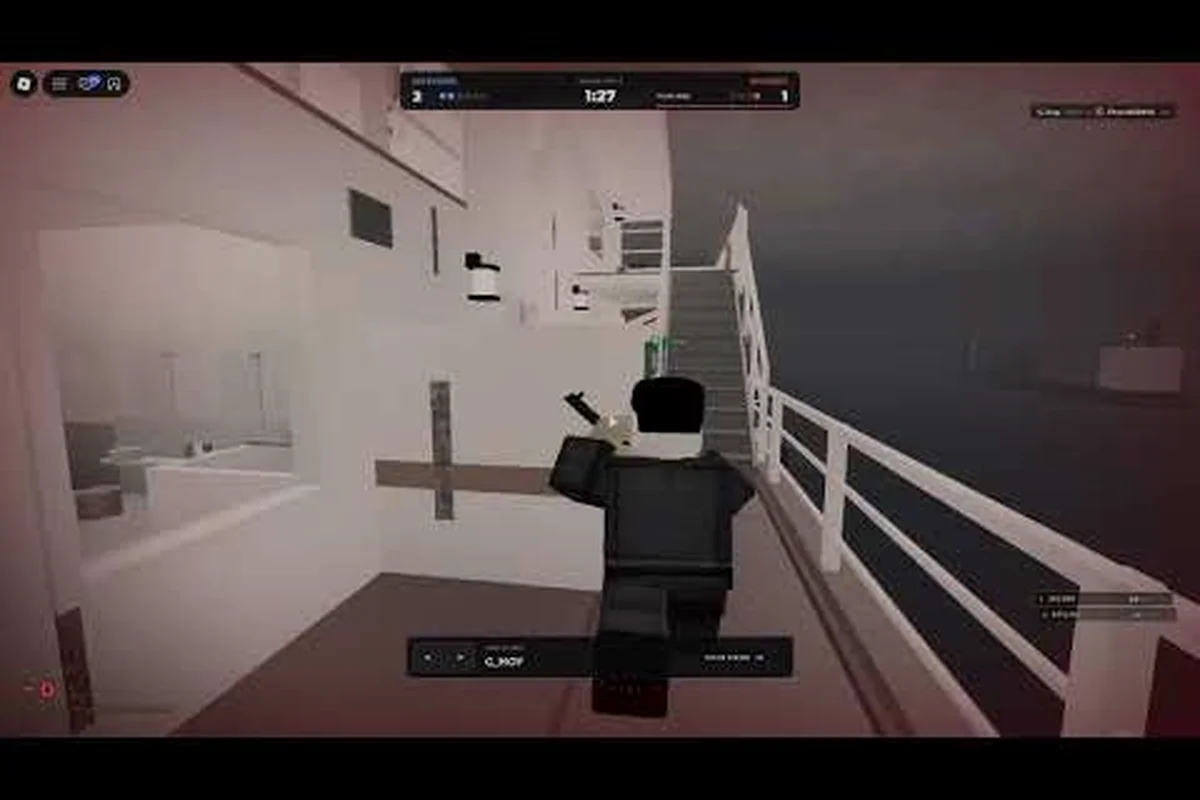
REALISTIC HOME DEFENSE mobile settings decide whether your first shot lands or your screen swings past the doorway while an intruder walks in. Touch controls drift, aim assist fights your thumb, and graphics lag stacks on top — so this guide tunes sensitivity, aim, and visuals for stable phone play.
For a closer look at how these mechanics play out in practice, the gameplay walkthrough at Realistic Home Defense Mobile Settings demonstrates the recommended settings in action.
Why Mobile Sensitivity Feels Wrong in REALISTIC HOME DEFENSE
The core problem is that a phone screen gives you a fraction of the travel distance a mouse or controller stick offers, so every swipe translates into a much larger camera rotation. In a defense game where you hold narrow sightlines down a hallway, that ratio punishes you twice: small corrections overshoot, and big turns feel sluggish because the acceleration curve ramps late. Players who come from PC report the default mobile layout feels "floaty" for exactly this reason.
The fix is not one magic slider. You need to separate hip-fire sensitivity from aim-down-sights sensitivity, then match both to how you actually hold the phone. A thumb player resting the device on a desk can run lower values than someone gripping it in two hands while standing.
Here is the baseline most mobile players should test first: this starting profile is built around the two-hand grip, thumb-on-glass posture that most players default to, so it assumes a mid-range camera rotation speed rather than the slow, deliberate drag a desk-rested phone allows. The hip-fire range sits deliberately wide because hallway holds in Realistic Home Defense punish both extremes — too low and you cannot swing onto a breaching intruder before they clear the doorframe, too high and a single thumb twitch throws your reticle past the sightline you were holding. Treat these numbers as a calibration anchor, not a final answer: load them, run three or four breach-and-hold drills, then nudge hip-fire up or down in increments of 5 until your first flick lands on the doorway edge instead of overshooting it.
| Setting | Starting Value | Why It Works |
|---|---|---|
| Hip-fire sensitivity | 45–55 | Fast enough to snap toward a breach, slow enough to track a strafing target |
| ADS sensitivity | 30–40 | Keeps your reticle glued to a doorway during a hold |
| Scope sensitivity | 20–30 | Prevents over-correction on long hallway angles |
| Vertical multiplier | 0.8–0.9 | Reduces accidental sky-drift when you flick upward |
| Dead zone | 5–8 | Filters thumb jitter without adding input delay |
Run these numbers in a private or low-pressure session before you commit, because the correct value is the one you can repeat under stress, not the one that feels fast in the menu. A practical test: load a breach-and-hold drill, hold a hallway sightline, then deliberately flick toward the doorframe as the intruder clears it — if your reticle lands past the frame, drop hip-fire by 5; if it stalls short of the corner, raise it by 5. Repeat until the first flick lands cleanly three times in a row, since menu testing never reproduces the thumb tension of a live breach.
Hip-Fire vs ADS: Split Them Deliberately
Most players leave both sliders identical and then wonder why close-range fights feel chaotic while long holds feel sticky. Treat them as two different jobs. Hip-fire exists for reaction speed — you are swinging the camera toward a sound and need the turn to finish before the enemy clears the corner. ADS exists for precision — the camera barely moves, and your job is micro-adjustment.
A practical split is roughly 15–20 points between the two. If hip-fire sits at 50, drop ADS to 32–35. That gap means your panic swipe is fast, but the moment you raise your weapon the camera calms down. Test it by strafing across a doorway and tapping ADS mid-move; if the reticle jumps past the frame, your ADS value is still too high.
Touch Layout Changes That Beat Raw Sensitivity
Sensitivity alone cannot fix a cramped button layout. If your fire button sits under the same thumb that aims, you are asking one finger to do two jobs. Move fire to the right index area if you play with the phone flat, or shift aim to the left thumb and firing to the right thumb in a two-thumb grip. The mobile controls guide walks through button resizing and placement in more detail, and it pairs well with the sensitivity numbers above.
Three layout tweaks that pay off fastest: treat the touch layout as a second sensitivity curve, because button size and reach decide how much of your aim thumb's travel is wasted. On a typical 6.5-inch phone in a two-thumb grip, a fire button at default size forces the thumb to lift and re-anchor between shots, and each re-anchor costs roughly 100–150 ms of aim time. Pulling fire toward the edge cuts that dead travel, while trimming rarely used jump and crouch icons keeps the thumb zone from crowding your aim stick.
-
Enlarge the fire button to at least 120% and pull it toward the screen edge so your thumb rests on it naturally.
-
Shrink the jump and crouch buttons — you use them far less than fire, and smaller icons free up thumb space.
-
Add a dedicated ADS toggle instead of hold-to-aim if your thumb cramps during long holds.
Building a REALISTIC HOME DEFENSE Sensitivity Guide You Can Trust
A sensitivity guide is only useful if it survives contact with an actual raid. The mistake is copying a streamer's numbers without matching their grip, screen size, and frame rate. A 6.7-inch phone at 60 fps and a smaller device at 30 fps need different values because the camera updates at different speeds.
Use this progression to lock in your own numbers rather than borrowing someone else's: start from a mid-range baseline (roughly 45–55 hip-fire and 40–50 ADS on a 6.7-inch phone at 60 fps), then run the five steps below in order and log each change. Change only one slider per round so you can attribute the result, and re-check your dead zone after any frame rate shift, since a value that felt crisp at 60 fps can drift at 30 fps. Two or three rounds usually land you on a stable Realistic Home Defense sensitivity that holds up under raid pressure.
-
Set dead zone first — raise it until your camera stops drifting when you lift your thumb, then stop. Going higher adds lag.
-
Tune hip-fire against a moving target — strafe left and right in a practice area and swipe to keep the reticle on a doorway edge. Adjust in steps of 5.
-
Tune ADS against a static hold — aim down a hallway and make tiny corrections. If you overshoot, drop 3–5 points.
-
Add the vertical multiplier last — only touch it if your flicks consistently drift high or low.
-
Re-test after any graphics change — frame rate shifts change how the camera feels, so re-verify.
Community reports suggest most players settle within two or three adjustment rounds if they change one slider at a time, and the reason is attribution: each round becomes a clean A/B test where the only variable is the slider you just moved. Change three at once — say hip-fire, ADS, and the vertical multiplier in a single session — and a sudden over-flick tells you nothing, because the multiplier and the hip-fire value both affect the same swipe. Keep a simple log of round number, slider, old value, new value, and the result in a practice strafe, so a regression like "ADS now overshoots by a body width at 10 meters" traces straight back to the 3–5 point drop you made. That discipline is what turns a borrowed baseline into realistic home defense sensitivity settings you actually own.
Reading Your Own Mistakes
Your misses tell you which slider is wrong. If your reticle consistently lands behind a moving target, your sensitivity is too low and you cannot catch up. If it consistently lands ahead, you are over-swiping and need to come down. If your shots scatter randomly around the target, the problem is usually dead zone or frame stutter, not sensitivity at all.
Track this for a few sessions, because a single match produces too much noise to isolate one variable. A simple note on your phone — "overshooting left turns," "flick shots land high-right," "hip-fire drags behind strafers" — is more useful than any preset list, because it points at the exact slider to move instead of nudging all six sensitivity values at once. Log the weapon and range too: an SMG spray at 10 meters exposes a too-high ADS multiplier that a rifle tap at 30 meters never reveals, so the same note means different slider moves depending on context.
REALISTIC HOME DEFENSE Aim Settings That Hold a Doorway
Aim settings in a home defense game are less about flicking and more about holding an angle without drifting. You spend most of a round watching a choke point, and the enemy appears for a fraction of a second. That means your aim configuration should prioritize stability over speed.
The aim and shooting fundamentals matter here too, because a moving camera plus a moving character compounds error: your crosshair drifts from the doorway edge while your character's strafe animation adds its own sway, so a shot that looked centered can land a full body-width wide. Plant your character before you fire whenever possible — stop, let the idle sway settle for roughly half a second, then take the shot. If you must fire while repositioning, favor a low-ADS, high-stability setup (drop ADS sensitivity about 5 points) so the reticle tracks the choke point instead of overshooting it, and save your fastest hip-fire values for close breaches where snap-turning beats precision.
| Aim Scenario | Recommended Approach | Setting to Adjust |
|---|---|---|
| Holding a hallway | Low ADS, high stability | ADS sensitivity down 5 |
| Clearing a room | Moderate hip-fire | Hip-fire up 5 |
| Long sightline | Lowest scope value | Scope sensitivity 20–25 |
| Close breach | Fast turn priority | Hip-fire 55+, vertical 0.9 |
Aim Assist and Touch Compensation
If your build exposes an aim assist or touch compensation toggle, treat it as a crutch with a ceiling. It helps you stay near a target during a panicked swipe, but it also pulls your reticle when two enemies overlap in a doorway — which is common in a defense scenario where intruders stack up. Test with it on and off in the same session and compare your hold accuracy. Many players keep a light assist for hip-fire and disable it for ADS, since precision holds punish the pull more than they reward it.
REALISTIC HOME DEFENSE Graphics Settings for Stable Touch Aim
Graphics settings are secretly aim settings. Every dropped frame makes your swipe feel disconnected from the camera, and in a game about reacting to a door opening, that half-second of stutter costs the round. Lower visuals usually beat prettier visuals on mobile.
| Graphics Option | Competitive Setting | Trade-off |
|---|---|---|
| Overall quality | Low or Medium | Sharper frames, softer textures |
| Shadows | Off | Big frame gain, slightly flatter rooms |
| Anti-aliasing | Off or Low | Minor edge shimmer, faster render |
| Render distance | Medium | Enough to see hallways, not the whole map |
| Effects / particles | Low | Fewer muzzle-flash frame dips |
| Frame rate cap | Highest available | Smoother camera tracking |
The rule is simple: if a setting does not help you see an intruder or track a doorway, turn it down. Shadows and particle effects look great in a screenshot and hurt you in a firefight. On older phones, dropping shadows alone often recovers enough frame rate to make sensitivity changes feel correct.
Matching Frame Rate to Sensitivity
If your phone cannot hold a steady frame rate, your sensitivity values will feel different from round to round — fast when the scene is empty, sluggish when smoke and bodies fill the hallway. Cap your frame rate at a value your device can actually sustain rather than chasing the maximum. A steady 45 fps feels far better for aiming than a bouncing 30-to-60, because your muscle memory can only learn a consistent camera speed.
REALISTIC HOME DEFENSE Settings Guide: How to Change Controls Safely
Changing controls mid-progression is where players break their own muscle memory — and in Realistic Home Defense, that damage compounds because your aim settings, ADS sensitivity, and button layout all feed into the same flick-to-angle habit. The safe method is to make one change, play a full session, then decide, because a single 3–5 point sensitivity shift can take several rounds before your crosshair placement stabilizes. Stack a button-size tweak on top of that and you can no longer tell which variable caused the miss. A settings guide is only valuable if you actually apply it in order.
Follow this sequence when you overhaul your setup: lock in the order so each variable gets isolated. Start by screenshotting your current layout — note the aim sensitivity value, ADS multiplier, and button scale — because without a baseline you cannot tell whether a 4-point drop or a button resize caused the regression. Change sensitivity first, since it shifts every flick and crosshair placement downstream; a 3–5 point step is the most you should move per session. Only then touch button size and position one button at a time, then drop graphics to recover frame rate, and finish by re-testing aim in a private round before returning to matchmaking.
-
Back up your current layout by noting the values in a screenshot before you touch anything.
-
Change sensitivity first, since it affects every other input.
-
Then adjust button size and position, one button per session.
-
Then drop graphics to recover frame rate.
-
Finally, re-test aim and fine-tune by 3–5 point steps.
If you are still learning the map and the flow of a round, the early game guide will help you understand which angles matter before you spend hours tuning a sightline you never hold. Settings amplify good positioning; they cannot replace it.
When to Reset Everything
If you have changed ten sliders and nothing feels right, reset to default and start over with the baseline table above. A clean slate beats a pile of half-tuned values every time, and it takes less than ten minutes to rebuild a working setup from scratch.
Frequently Asked Questions
What are the best REALISTIC HOME DEFENSE mobile settings for beginners?
Start with hip-fire around 45–55, ADS at 30–40, and a dead zone of 5–8, then lower graphics quality and turn shadows off. These values keep the camera steady during hallway holds while still letting you swing toward a breach. Adjust one slider at a time and re-test after each change.
How do I change controls on mobile in REALISTIC HOME DEFENSE?
Open the settings menu and look for the controls or layout tab, where you can resize, move, and add buttons. Change one element per session so you can tell what helped. Enlarging the fire button and adding an ADS toggle are the two changes most players notice immediately.
Why does my aim feel different every round?
Inconsistent frame rate is the usual cause. When your phone drops frames during busy scenes, the camera moves at a different speed and your muscle memory cannot lock in. Cap the frame rate at a value your device sustains and lower effects and shadows to keep it steady.
Should I use the same sensitivity for hip-fire and ADS?
No. Hip-fire needs speed to swing toward a sound, while ADS needs stability to hold a doorway. A gap of roughly 15–20 points between the two gives you fast reactions without sacrificing precision when you raise your weapon.
Do graphics settings really affect aim on mobile?
Yes, because every dropped frame delays the camera response to your swipe. Turning off shadows, lowering effects, and capping frame rate at a sustainable level makes touch aiming feel connected rather than floaty, which matters more than visual polish in a defense scenario.
Tuning your mobile setup comes down to three moves: split hip-fire and ADS sensitivity, shrink the dead zone until drift stops, and strip graphics until the frame rate holds steady. Lock those in one at a time, re-test after every change, and your touch controls will stay predictable the next time someone kicks in the front door.