
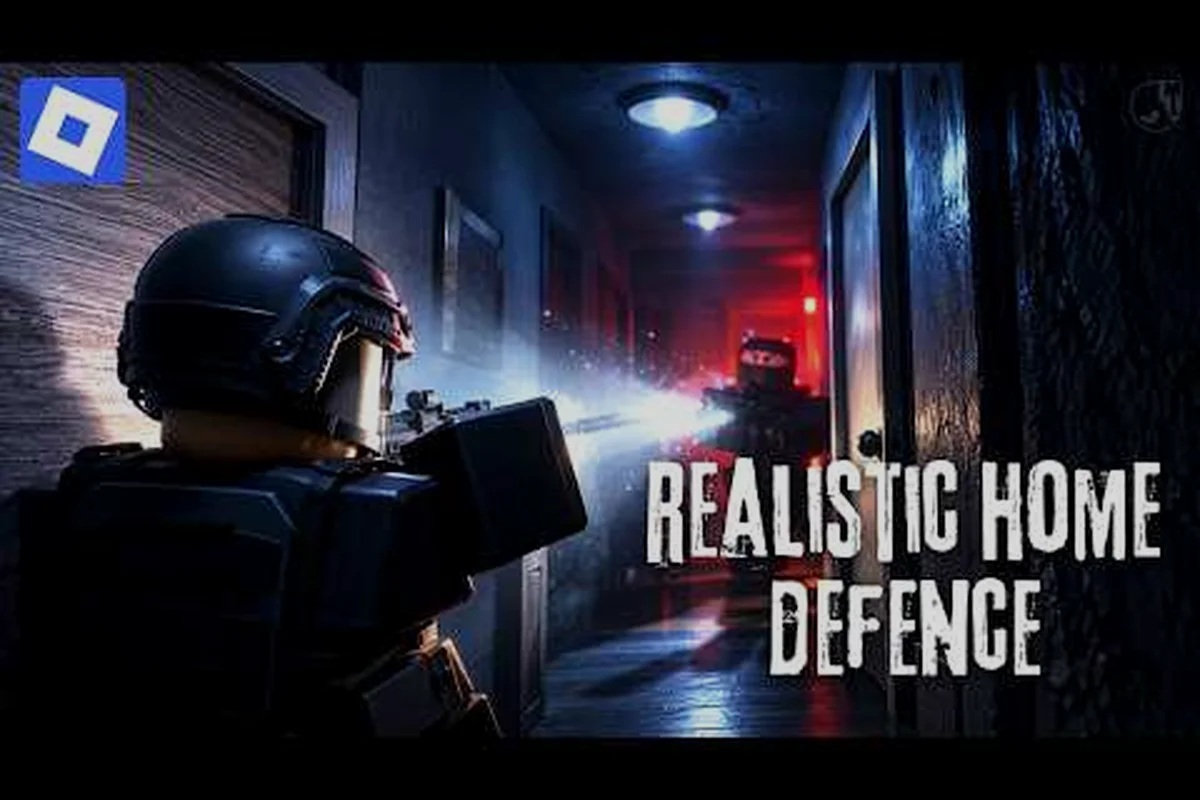
If you have ever fumbled for the reload key while a raider kicks in your front door, this realistic home defense keybind guide fixes that problem. Every button on your control scheme matters when a breach happens in under two seconds, and knowing exactly what each input does is the difference between holding the hallway and losing the house.
For a walkthrough of the control layout in action, see this realistic home defense keybind guide video, which demonstrates how the bindings map to in-game movement and interaction.
Why Your Control Scheme Decides Most Firefights
Realistic Home Defense leans hard on tension: doors break, footsteps close in, and you have a fraction of a second to react. That design means your realistic home defense control scheme is not a cosmetic preference — it directly controls how fast you can pivot, aim, and fire. Players who never touch the defaults often blame "bad hitboxes" or "lag" when the real culprit is a keybind sitting on the wrong finger.
The good news is that the game exposes a full remapping menu, so almost nothing is locked. Before you change a single key, though, it helps to understand what each input actually does in a live defense — because the defaults are not evenly weighted. Movement, aim/fire, interact, reload, and crouch/prone each carry different timing pressure during a breach, and a key that feels fine in the tutorial can cost you the fight when a door splinters at close range. That is why the breakdown below maps every default to its real in-raid job before you start rebinding.
-
Movement is handled by standard WASD on PC, with sprint bound separately so you can hold a lane without accidentally running past cover.
-
Aim and fire are split across the mouse buttons, and the game distinguishes hip-fire from aimed fire with different accuracy values.
-
Interact covers doors, barricades, ammo crates, and downed teammates, which makes it one of the most overloaded buttons in the game.
-
Reload is a full animation you can interrupt, so binding it somewhere reachable mid-fight matters more than it sounds.
-
Crouch and prone change your silhouette and recoil, and both are worth rebinding if you play a hold-the-stairwell style.
If you want the full platform-by-platform breakdown of defaults, the PC controls guide walks through mouse and keyboard mapping in more detail than this overview can cover — including how the remap menu handles secondary bindings, so you can keep a backup key for interact without sacrificing your primary crouch slot. That matters because the default layout stacks several high-pressure actions close together, and a single misplaced bind can force your thumb off the mouse during a breach. Read the platform guide first, then return here to see how each remapped key performs under real raid pressure.
Every Button Explained: Default Bindings at a Glance
The realistic home defense buttons explained section is where most new players get lost, because the game does not label every action clearly in the pause menu. Below is a practical reference table for the standard PC layout, based on the default scheme most players start with. Console and mobile layouts differ, so treat this as the PC baseline.
| Action | Default Key | When You Use It | Rebind Priority |
|---|---|---|---|
| Move | W / A / S / D | Constant | Low |
| Sprint | Left Shift | Rotating between windows | Medium |
| Crouch | Left Ctrl | Holding angles, reducing recoil | High |
| Prone | Z | Long sightlines, avoiding fire | Low |
| Fire | Left Mouse Button | Every engagement | Locked |
| Aim Down Sights | Right Mouse Button | Mid-to-long range | Locked |
| Reload | R | After every magazine | High |
| Interact | E | Doors, barricades, pickups | High |
| Melee / Bash | V | Close-quarters panic defense | Medium |
| Flashlight | F | Dark hallways and basements | Medium |
| Lean Left / Right | Q / E (alt) | Peeking without exposure | High |
| Scoreboard | Tab | Checking team status | Low |
A few things stand out once you see it laid out. Interact and lean compete for the same finger space on many layouts, and reload sits far from where your hand naturally rests during a hold. Those three are the first candidates for any realistic home defense control customization pass.
The Inputs You Should Never Rebind
Some actions are better left alone. Fire and aim down sights are locked to the mouse buttons for good reason: separating them across the keyboard breaks the muscle memory that every shooter player already has. Similarly, movement keys should stay on WASD unless you use an alternative keyboard layout, because remapping movement forces you to relearn spatial awareness from scratch. Leave those alone and spend your customization budget on the utility keys instead.
Tuning Aim Settings for Tight Hallway Fights
Your realistic home defense aiming settings deserve more attention than any other slider in the menu. Indoor combat happens at three to eight meters, which means your sensitivity needs to feel precise at close range without becoming unusable when you check a long hallway or a backyard window.
Start with a lower sensitivity than you would use in a fast arena shooter. A good rule of thumb reported by players is that a full mouse swipe across your pad should turn you roughly 180 degrees — enough to check behind you, not so much that a small flick overshoots a doorway. Then adjust in small increments rather than big jumps, because your hands adapt slowly and large changes create inconsistency.
| Setting | Recommended Starting Point | Effect on Gameplay |
|---|---|---|
| Mouse Sensitivity | 0.35 – 0.50 | Controls turn speed and flick accuracy |
| ADS Sensitivity Multiplier | 0.70 – 0.85 | Slows aim while scoped for precision |
| Aim Assist (controller) | Low or Off | Keeps your crosshair honest in tight rooms |
| Field of View | 90 – 100 | Wider awareness without fisheye distortion |
| Invert Y-Axis | Off | Standard vertical aim direction |
| Toggle vs Hold Aim | Hold | Faster target switching between doors |
Aim assist is a controversial one. On controller it can help you track a strafing intruder, but in realistic home defense gameplay settings it occasionally pulls your reticle toward a target behind a wall, which wastes your reaction window. Many experienced players turn it down or off entirely and rely on raw input instead. Test both in a private session before committing.
For a deeper dive into sensitivity curves and per-scope multipliers, the mobile and sensitivity settings breakdown covers the numeric side in more detail. That companion page also explains how the ADS Sensitivity Multiplier interacts with each optic's zoom level — a 0.70 multiplier that feels crisp on a red dot can feel sluggish through a 4x scope when you hold a hallway angle, so per-scope tuning matters more here than in open-map shooters. It also walks through DPI-to-in-game-sensitivity conversion if you're porting your realistic home defense control scheme from another tactical title.
Shaping a Control Layout Around Your Defending Style
There is no single "best" layout, but there is a best layout for how you actually defend. Aggressive players who roam between entry points need fast leaning and quick reloads, while anchor players who hold one room want comfortable crouch access and a reliable flashlight toggle. The table below maps common playstyles to the keybinds that support them.
| Playstyle | Priority Rebinds | Why It Helps |
|---|---|---|
| Roamer / Flanker | Lean on mouse side buttons, reload on a thumb key | Faster peeking and topping off between rotations |
| Anchor / Holder | Crouch on a comfortable key, flashlight on a nearby key | Long holds without hand fatigue |
| Support / Builder | Interact on a dedicated key, sprint on a toggle | Faster barricade placement under pressure |
| Solo Defender | Melee on a reachable key, lean on Q/E | Self-defense when a breach happens at point-blank |
Using Mouse Side Buttons
If your mouse has thumb buttons, use them. Binding lean left and lean right to mouse buttons is one of the most popular realistic home defense control customization moves, because it lets you peek corners without lifting a finger off movement. The same goes for melee — a panic bash is far more reliable when it lives under your thumb than when it sits on a keyboard key you have to hunt for.
Toggle Versus Hold
The menu lets you choose toggle or hold behavior for crouch, aim, and sprint. Hold-to-crouch gives you finer control over your silhouette and lets you pop up instantly, while toggle-to-sprint saves finger strain during long rotations. Mix and match rather than applying one setting globally — the game supports per-action choices, and using them is the fastest way to make the controls feel custom-built.
Fixing Recurring Keybind Problems: Conflicts and Overlaps
Most control problems in realistic home defense trace back to a handful of repeatable mistakes, and each one has a mechanical cause you can fix in about ten minutes. Input conflicts are the biggest offender: when two actions share a key, the game fires whichever binding it reads first, so a door-fight lean can eat your interact prompt. Reachability is the second — if your reload or crouch key forces your left hand off WASD, your strafe dies mid-magazine. Sensitivity creep and untested binds round out the list; the fixes below walk through each.
-
Leaving interact on E while also using E to lean. This creates input conflicts during door fights. Move lean to mouse buttons or to Q and a side key.
-
Binding reload to a key you cannot reach without moving your hand. If your left hand leaves WASD to reload, you lose movement exactly when you need it most.
-
Cranking sensitivity to maximum for "faster aim." High sensitivity feels responsive in the menu and chaotic in a hallway. Lower it and adjust gradually.
-
Ignoring the flashlight key. Dark basements are a real threat, and fumbling for F costs you the first shot.
-
Never testing changes in a live scenario. Rebind, then immediately play a round. If a key feels wrong in the first firefight, it will feel wrong forever.
If you would rather see each remap option in context than hunt through menus yourself, the beginner-friendly control tutorial is a good companion: it walks the remapping screen field by field, showing where the lean, interact, reload, and flashlight bindings sit and how the primary/secondary slot assignments interact. Pair it with the fixes above — resolve the E-key conflict first, then verify each change in a live round — so you are not debugging three bindings at once during a basement breach.
Platform Differences Worth Knowing
PC gets the most granular control, but the same realistic home defense gameplay settings exist on console and mobile with different constraints. On console, you are limited to controller remapping and a handful of sensitivity sliders, so prioritize aim sensitivity and button layout presets over fine-tuning. On mobile, the touch layout is fully editable — you can drag buttons anywhere on screen, resize them, and add extra inputs for lean and melee.
| Platform | Customization Depth | Best First Change |
|---|---|---|
| PC | Full remapping, per-action toggles, sensitivity curves | Move lean to mouse side buttons |
| Console | Preset layouts plus sensitivity sliders | Switch to a tactical button preset |
| Mobile | Drag-and-drop buttons, resizing, extra inputs | Enlarge fire and aim buttons |
If you play across multiple devices, keep your sensitivity roughly consistent in terms of turn distance rather than raw numbers, since each platform scales input differently. That single habit prevents the "I came back to PC and everything feels wrong" problem.
Once your controls are dialed in, the next step is understanding how the game's weapons and movement systems interact with those inputs. The game mechanics overview explains fire modes, recoil behavior, and tactical movement so your new keybinds translate into actual defensive wins.
Frequently Asked Questions
What is the most important keybind to change in Realistic Home Defense?
Reload is usually the highest-value rebind, because the default R key forces your hand off movement during a fight. Moving reload to a mouse thumb button or a key adjacent to WASD lets you top off a magazine while still strafing, which keeps you mobile during breaches. Lean is a close second for corner-heavy maps.
Do pro players use high or low mouse sensitivity?
Most experienced defenders use lower sensitivity than casual players expect, typically in the 0.35 to 0.50 range. Indoor fights happen at short distances where precision beats speed, and a lower setting keeps your crosshair from overshooting doorways. Adjust in small increments and give your hands a few sessions to adapt.
Can I customize controls on mobile and console?
Yes. Mobile offers the deepest touch customization, letting you drag, resize, and add buttons anywhere on screen. Console is more limited, mostly preset layouts plus sensitivity sliders, but you can still remap most face buttons. The core realistic home defense settings explained in this guide apply across all three platforms with minor differences.
Should I turn aim assist off?
Many players keep it low rather than fully off. Aim assist helps track strafing targets on controller, but at high values it can pull your reticle toward enemies behind cover. Start at low, test in a private round, and raise it only if you consistently miss close-range targets.
How long does it take to adjust to new keybinds?
Expect two to four play sessions before new binds feel natural. During that window your performance may dip slightly, which is normal. Change one or two keys at a time rather than remapping everything at once, so your muscle memory has a chance to rebuild without total confusion.
Getting your realistic home defense keybind guide fundamentals right — a clean control scheme, sensible aim settings, and a layout built around how you actually defend — turns the game from a frantic scramble into a controlled, repeatable defense. Start with reload, lean, and sensitivity, test each change in a live round, and let the muscle memory settle before you tweak anything else.