
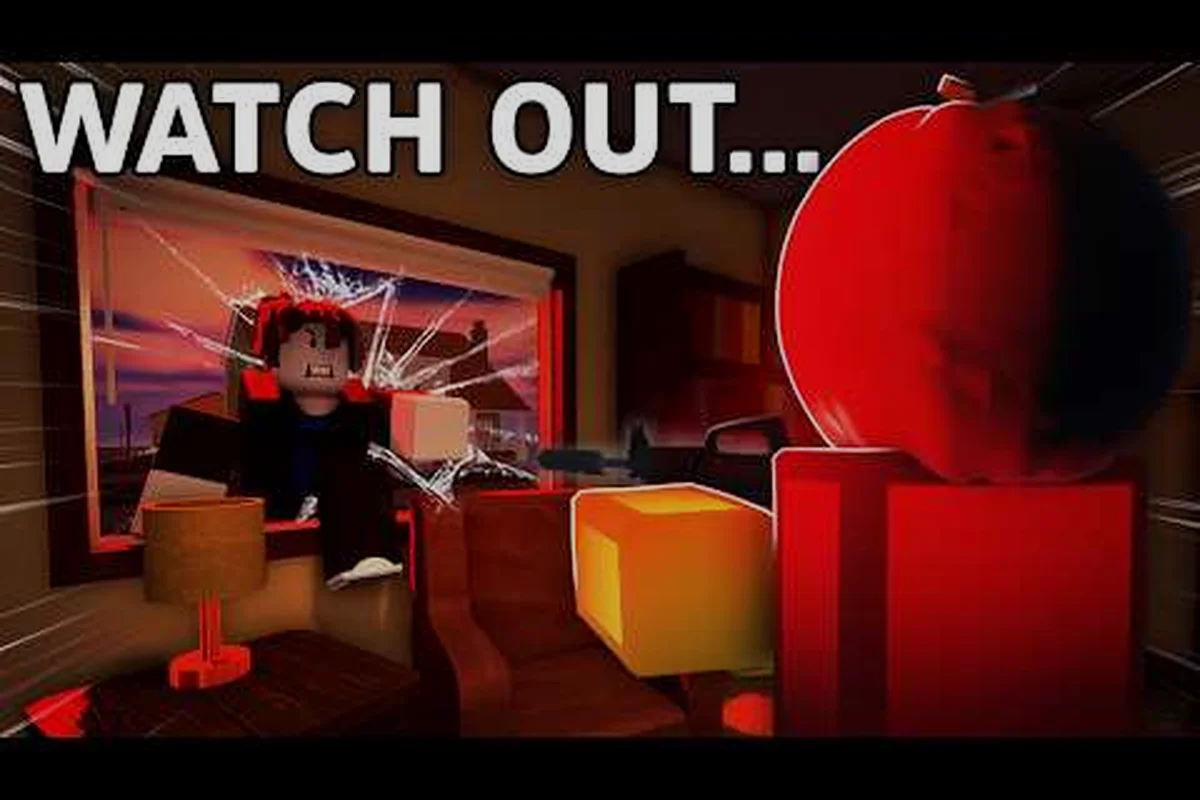
Playing REALISTIC HOME DEFENSE on a mouse and keyboard is the fastest way to sharpen your reaction time, but the default layout fights you more than the raiders do. This PC controls guide fixes that by walking through keybinds, sensitivity, and aim assist settings so every corner peek lands where you expect.
The difference between holding a hallway and getting rushed comes down to a handful of inputs you can reach without thinking. Once your control mapping matches how the game actually plays, your aim stops drifting and your movement becomes deliberate. Below you will find the exact setup that experienced players gravitate toward, plus the reasoning behind each change so you can adapt it to your own hands.
For players cross-referencing control layouts, the official gameplay walkthrough demonstrates how movement, aiming, and interaction bindings are mapped on PC.
Why the Default PC Layout Holds You Back
REALISTIC HOME DEFENSE ships with a generic Roblox control scheme, and that scheme was never designed around the tension of defending a house against armed intruders. The default bindings scatter your most urgent actions across the keyboard, which means your left hand travels instead of staying anchored on movement. On a shooter where a single second of hesitation lets a raider through a doorway, that travel time is fatal.
The bigger problem is that the stock layout treats aiming, interacting, and crouching as roughly equal priorities. In practice, aiming and crouching are the two inputs you use constantly during a firefight, while interaction only matters during the quiet build phase. A good control mapping reflects that imbalance by putting the combat-critical actions under your fingers and pushing utility actions to the edges.
Community reports from long-form gameplay footage show that mouse-and-keyboard players who rebind early tend to clear early waves more consistently than those who stick with defaults. The reason is simple: fewer misclicks. When your crouch key is somewhere your pinky can find it without looking, you actually use cover instead of standing in the open.
Here is a quick comparison of how the stock layout stacks up against a tuned one, and the gaps are wider than most players expect: crouch on Ctrl forces your pinky off the movement cluster mid-strafe, while sprint sharing Shift means you cannot slide into cover and drop low in the same motion. Rebinding crouch to Shift or C and pushing sprint to Left Alt removes that conflict entirely, so a doorway peek-and-duck becomes one fluid input instead of two competing ones.
| Action | Default Binding | Recommended Binding | Why It Matters |
|---|---|---|---|
| Crouch | Ctrl (awkward reach) | Shift or C | Faster cover transitions |
| Interact | E | E (keep) | Familiar and central |
| Sprint | Shift (conflicts) | Left Alt | Frees Shift for crouch |
| Reload | R | R (keep) | Universal muscle memory |
| Aim/Down Sights | Right Mouse | Right Mouse (keep) | Standard FPS expectation |
| Weapon Swap | Number keys | Mouse Wheel | One-hand weapon cycling |
The takeaway is not that every default is wrong, but that the ones which force your hand to leave the movement cluster are the ones costing you fights. Fix those first and the rest of the layout can stay familiar.
Designing a Mouse-and-Keyboard Scheme That Fits Your Hands
A control mapping is personal, but the principles behind a good one are not. You want your movement keys, crouch, and jump all reachable by the left hand without repositioning, and you want every combat action on the mouse or immediately adjacent to WASD. Anything that requires you to look down at the keyboard is a liability during a breach.
Start by deciding whether you are a Shift-crouch player or a C-crouch player. Shift-crouch is popular because your pinky rests there naturally, but it means you need a different sprint key. C-crouch keeps Shift free for sprinting but requires a slight thumb or index reach. Test both in a low-pressure wave before committing, because switching mid-run is worse than either choice.
Once crouch is settled, layer in the rest of the layout using this priority order: movement first, then interact, then reload, then weapon swap, then utility. The reason is muscle memory — WASD and the universal R reload transfer directly from other shooters, so they cost you nothing to learn, while a rebind on Interact (E) or a mouse side-button flashlight is a fresh habit that takes several waves to feel automatic. Rebind one key at a time and run a full breach-and-clear before touching the next, because stacking three new binds at once makes it impossible to tell which one is costing you a reload mid-fight.
-
Movement (WASD) — never rebind these; muscle memory from every other shooter transfers directly.
-
Crouch — Shift or C, whichever your hand prefers, and never on a key you have to hunt for.
-
Interact (E) — keep it central so barricading and looting stay quick during build phases.
-
Reload (R) — leave it alone; the universal reload key saves you from relearning.
-
Weapon swap (Mouse Wheel) — cycling weapons with one hand keeps your left hand on movement.
-
Flashlight or utility — bind to a mouse side button if you have one, since you toggle it often in dark rooms.
If you are coming from a mobile or console background and this is your first time on keyboard, the control tutorial for beginners walks through the absolute basics before you start customizing. Getting the fundamentals down first makes the advanced rebinding far less confusing.
Mouse Sensitivity and DPI
Sensitivity is where most PC players sabotage themselves without realizing it. A sensitivity that feels snappy in the menu often feels twitchy the moment a raider strafes across a doorway. The fix is to lower your in-game sensitivity and raise your mouse DPI, which gives you finer control over small adjustments while still letting you whip around for a 180.
A practical starting point is 800 DPI with in-game sensitivity around 0.4 to 0.6. From there, load into a quiet moment and practice tracking a fixed point on a wall while strafing. If your crosshair overshoots the point, drop sensitivity by 0.05. If you cannot reach the point fast enough, raise it slightly. Repeat until the crosshair lands where your hand expects.
Keybind Conflicts to Watch For
Roblox experiences sometimes inherit engine-level bindings that clash with your custom keys. The most common conflict is Shift being claimed by both sprint and crouch, which produces a stutter where your character neither sprints nor crouches cleanly. Resolve it by assigning sprint to Left Alt and leaving Shift exclusively for crouch.
A second frequent conflict involves the number keys, which some players use for weapon slots while the game also uses them for building categories. If you notice your build menu flickering when you swap weapons, move weapon cycling to the mouse wheel and leave the number row to the build system.
Tuning Aim Assist Settings for Mouse and Keyboard
Aim assist on PC is a divisive topic, and the honest answer is that REALISTIC HOME DEFENSE handles it differently than a dedicated competitive shooter. The assist is subtle by design, meant to smooth over the imprecision of tracking a moving target rather than to snap your crosshair onto heads. Understanding what it actually does prevents you from over-tuning it and making your aim feel sticky.
The core aim assist settings you can adjust break down like this: Aim Assist Strength governs overall magnetism toward targets and should sit at Low to Medium so tracking stays smooth without fighting your input; Aim Assist Window sets the size of the activation zone, and Medium is the sweet spot since an oversized window feels sticky near doorways; Rotation Assist helps turn onto fast-moving targets but should stay Low, as high values overshoot on strafes; Slowdown Zone reduces sensitivity near a target and Medium aids precision shots at range; and Target Snap should be Off entirely because the instant pull feels unnatural on mouse input.
| Setting | What It Does | Recommended Value | Effect on Gameplay |
|---|---|---|---|
| Aim Assist Strength | Overall magnetism toward targets | Low to Medium | Keeps tracking smooth without fighting your input |
| Aim Assist Window | Size of the zone where assist activates | Medium | Too large feels sticky near doorways |
| Rotation Assist | Helps turn onto fast-moving targets | Low | High values cause overshoot on strafes |
| Slowdown Zone | Reduces sensitivity near a target | Medium | Helps precision shots at range |
| Target Snap | Instant pull toward a new target | Off | Feels unnatural on mouse input |
The guiding principle is less is more on mouse and keyboard. Controller players benefit from stronger assist because thumbsticks are inherently imprecise, but a mouse gives you pixel-level control that heavy assist actively undermines. If your crosshair feels like it is being dragged away from where you are pointing, your assist strength is too high.
When to Turn Aim Assist Off Entirely
Many experienced PC players disable aim assist completely once they have dialed in their sensitivity. The reasoning is that assist can mask bad habits, and once you remove it, your raw tracking improves because you are forced to correct your own aim. If you are serious about improving, spend a few sessions with assist off in low-stakes waves, then turn it back on at low strength if you find yourself missing fast targets.
The sensitivity and aim settings breakdown covers the underlying numbers in more detail if you want to understand how the assist values interact with your base sensitivity. Getting both aligned is what produces that crisp, predictable feel.
Advanced Keybinds for Fast Peeking and Cover Play
Once your baseline layout is comfortable, the next layer is optimizing for the specific rhythm of home defense: hold a corner, peek, fire, retreat, reposition. This loop rewards players who can peek and un-peek without losing their crosshair placement, and a few advanced binds make that loop much smoother.
The single most impactful advanced bind is putting lean or peek on a mouse side button if your mouse has one. Peeking with a thumb press keeps your left hand free for strafing, so you can lean out, fire, and lean back in one fluid motion. Players without side buttons can use Q and E for lean, though that competes with interact, so consider moving interact to F in that case.
A second useful bind is a dedicated crouch-spam key for jiggle peeking. Binding crouch to a key you can tap rapidly lets you duck in and out of cover to bait shots without fully committing. This is where C-crouch shines, because tapping C repeatedly is easier than tapping Shift without accidentally triggering sprint.
Beyond those two core binds, the remaining advanced layout work is about eliminating hand travel during the hold-peek-fire-retreat loop. Bind your sprint to Left Alt rather than Shift so your pinky stays anchored on crouch, and move reload to a mouse button or R so you never break your lean grip mid-fight. If your mouse supports it, put toggle light on a second side button — clearing a dark hallway without lifting your aim hand matters more than most players realize. The compact reference below maps each in-game situation to its recommended input and binding, so you can cross-check your setup against the scenarios that actually decide home defense engagements.
| Situation | Input | Binding Suggestion |
|---|---|---|
| Quick peek around a corner | Lean | Mouse side button or Q/E |
| Bait a shot while in cover | Crouch tap | C |
| Reposition to a new angle | Sprint | Left Alt |
| Emergency reload behind cover | Reload | R |
| Toggle light in a dark room | Utility | Mouse side button 2 |
Practicing Your Peek Timing
Keybinds only pay off if the timing behind them is trained. Spend a few minutes each session practicing the peek-fire-retreat loop against a wall or a stationary target. The goal is to make the sequence automatic so that when a raider actually appears, your hands execute without conscious thought. Community footage of high-level play shows this rhythm clearly, and studying how veteran players time their peeks is one of the fastest ways to internalize it.
Common PC Control Mistakes and How to Fix Them
Most players who follow a solid realistic home defense control guide still hit the same recurring failures, and nearly all of them trace back to one misconfigured setting rather than a lack of skill. The usual culprits are conflicting keybinds, aim assist slowdown that is too aggressive, and a build-menu key overlap that makes weapon swaps feel unresponsive. Catching these early saves hours of frustration, because each one quietly distorts your input and trains bad muscle memory that you then have to unlearn.
-
Crosshair drifts after you stop moving — usually caused by aim assist slowdown being too high; reduce the slowdown zone.
-
Crouch and sprint fight each other — a Shift conflict; move sprint to Left Alt.
-
Weapon swap feels laggy — number keys are shared with the build menu; switch to mouse wheel.
-
Peeking overshoots the corner — rotation assist is too strong; lower it or disable it.
-
Sensitivity feels different between sessions — your mouse DPI profile may be switching; lock it in your mouse software.
The most overlooked fix is the mouse acceleration setting in your operating system, which can silently sabotage your aim by making your crosshair travel distance depend on how fast you move the mouse. Disable OS-level mouse acceleration so that your in-game sensitivity translates consistently, then retune your in-game values. This single change often makes an otherwise good sensitivity feel dramatically more predictable.
If you are still early in your REALISTIC HOME DEFENSE journey and want to pair these controls with a solid defensive strategy, the early game guide explains how to set up your first barricades and where to position yourself, which makes your new keybinds far more effective. Controls and tactics reinforce each other, and learning them together produces faster improvement than grinding either in isolation.
Frequently Asked Questions
What are the best keybinds for REALISTIC HOME DEFENSE on PC?
The strongest setup keeps WASD for movement, puts crouch on Shift or C, leaves interact on E and reload on R, and moves sprint to Left Alt to avoid conflicts. Weapon cycling works best on the mouse wheel, and lean or peek on a mouse side button if you have one.
Should I turn aim assist on or off with a mouse?
Start with low aim assist strength and a medium slowdown zone, then test with it off for a few sessions. Mouse input already offers fine control, so heavy assist often feels sticky. Many experienced PC players run it low or disabled entirely once their sensitivity is dialed in.
How do I fix my crouch and sprint conflicting?
The conflict comes from both actions sharing Shift, so every time you press it the game has to guess whether you meant to sprint or crouch — which is why you get that stutter where your character neither sprints nor crouches cleanly. Rebind sprint to Left Alt and leave Shift exclusively for crouch; the two inputs then register independently, so you can drop into cover the instant you release sprint instead of waiting for the game to resolve the overlap. This also keeps your movement hand anchored on WASD, since Left Alt sits directly under your thumb and never pulls your fingers off the strafe keys during a raider push.
What sensitivity should I use for REALISTIC HOME DEFENSE PC?
A practical starting point is 800 DPI with in-game sensitivity between 0.4 and 0.6. Practice tracking a fixed point while strafing, then adjust by 0.05 until your crosshair lands where your hand expects without overshooting or lagging behind.
Why does my aim feel inconsistent between sessions?
Operating system mouse acceleration is the usual culprit, since it makes crosshair travel depend on mouse speed. Disable it in your OS settings and lock your mouse DPI profile in its software. Once those are stable, your in-game sensitivity behaves the same every session.
The right PC controls turn REALISTIC HOME DEFENSE from a fight against your own inputs into a fight you actually control. Lock in a crouch key that does not conflict with sprint, keep combat actions under your fingers, and tune aim assist down rather than up. Do those three things and your peeks will land crisp, your cover play will feel deliberate, and the raiders will have a much harder time getting through your door.